How to Set Up Edit Mode in WoW Retail
Move your frames, save a separate HUD layout, and test it without losing the setup you already use.
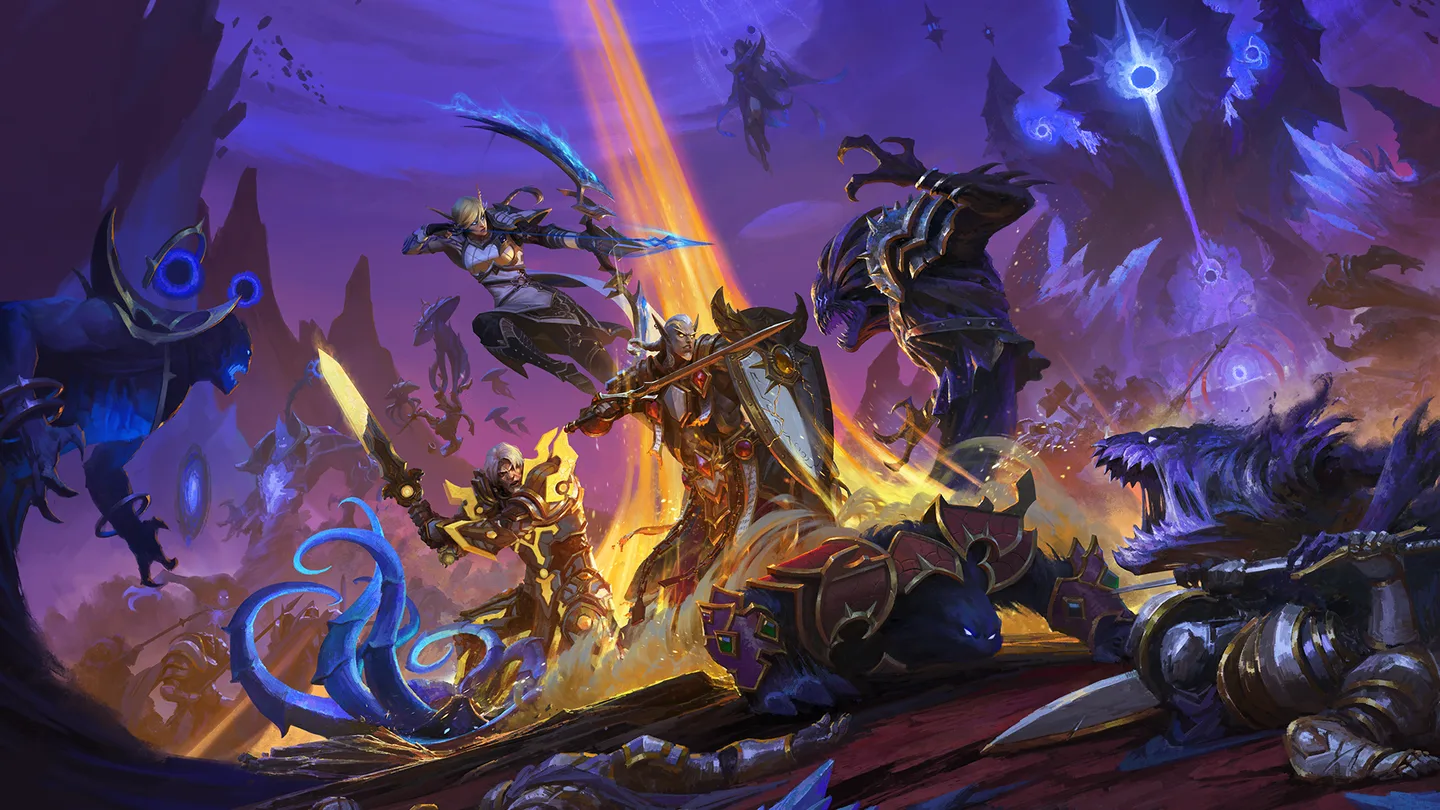 Art: Blizzard Entertainment
Open Escape → Edit Mode in World of Warcraft Retail to move and resize built-in interface elements. Save a new layout before you start experimenting. That gives you a way back if your new setup looks tidy in town but makes a boss cast or a low-health teammate difficult to see.
Save a layout for one job
Start on the character and specialization you want to play. Pick a specific purpose for the new layout: healing a five-player group, tracking a boss while tanking, or keeping the screen clear for outdoor questing. Then open Edit Mode from the game menu and create a new named layout with the layout selector. Use a name that will still make sense once you have several layouts, such as “Five-player healing” or “Outdoor wide view.”
If you already have a custom layout you like, export it using the share option and save the copied text somewhere you can find it. Exporting is useful if you want an extra copy before making major changes. It also lets you share a layout with someone else. The layout string is for the HUD; it isn't a backup of your key bindings, addons, or the spells on your action bars.
Move the pieces you look at during combat first
Start with the player and target frames. Bring them close enough that you can watch your health and check an enemy without taking your eyes far from your character. Leave room around your feet so you can see ground effects. If two frames fit neatly side by side at rest, check what happens when a cast bar or row of effects appears next to them.
Click each editable element to see its own settings. Available options depend on the element. A change to the size of one action bar won't resize your other bars, so do the frequently used bar first. Use the grid or snap controls when alignment helps, but keep enough space between elements for labels and changing information.
If you're setting up a healing layout, place the party frame before the chat box or bag bar. Move it somewhere your cursor can reach quickly without crossing the whole screen. For a tank or damage dealer, the target cast bar is a good candidate for a central position. The Midnight client also lets you customize elements such as the Boss Timeline, Boss Text Alerts, and built-in Damage Meter. Fit these around the parts of the screen you need to watch constantly.
Save and test outside the editor
Save your changes, then exit Edit Mode. In normal play, look at a target and try an ability with a cast time if you have one. Turn the camera, run sideways, and see whether you can follow the ground around your character while checking your target. If you heal, join a low-pressure group to test the party frames; the editor can't show every combination of health bars, debuffs, and alerts you'll see during a pull.
When something overlaps, change only the element that caused the problem, then repeat the test. For example, move boss alerts upward if they sit directly over the target cast bar. If your damage meter competes with the party frame for space, shrink or move the meter before moving the frame you rely on to heal.
Swap specializations after saving if you use more than one. Retail can remember layout choices by specialization, so check the active layout after each swap. You can use the same design for both roles, or assign distinct layouts and keep the important information in familiar places.
Import a layout without losing your own
Copy the shared layout text, open Edit Mode, and choose the import option in the layout controls. Import it under a new name so you can compare it to your own. Save, exit the editor, and check the screen at your actual window size. A layout that suits another player's monitor may leave frames too small or put alerts too close to the edge on yours.
If the imported setup looks incomplete, check whether the preview relied on an addon. Edit Mode only controls supported elements of the built-in interface. Restore your previous layout from the selector if you need it, then adjust the imported one separately.
If a frame seems to have vanished, reopen the editor and check whether that element is selected for editing. Also test it under the conditions where it normally appears. A combat-only element can be working exactly as configured even when it isn't visible in town.
More World of Warcraft guides
-
Pet BattlesArt: Blizzard Entertainment
How to Start Pet Battles in WoW Retail11 Nov
-
Chromie TimeArt: Blizzard Entertainment
How to Use Chromie Time in WoW Retail11 Nov
-
Delve JourneyArt: Blizzard Entertainment
How to Use the Delve Journey in WoW Retail11 Nov
-
SkyridingArt: Blizzard Entertainment
How to Use Skyriding in WoW Retail11 Nov
This article was written by AI (Claude) and checked against the sources above. Games are updated regularly, so details may change.