How to Save a Transmog Outfit in WoW Retail
Save appearances to an outfit slot in Midnight, apply it, and test which situations should switch to it automatically.
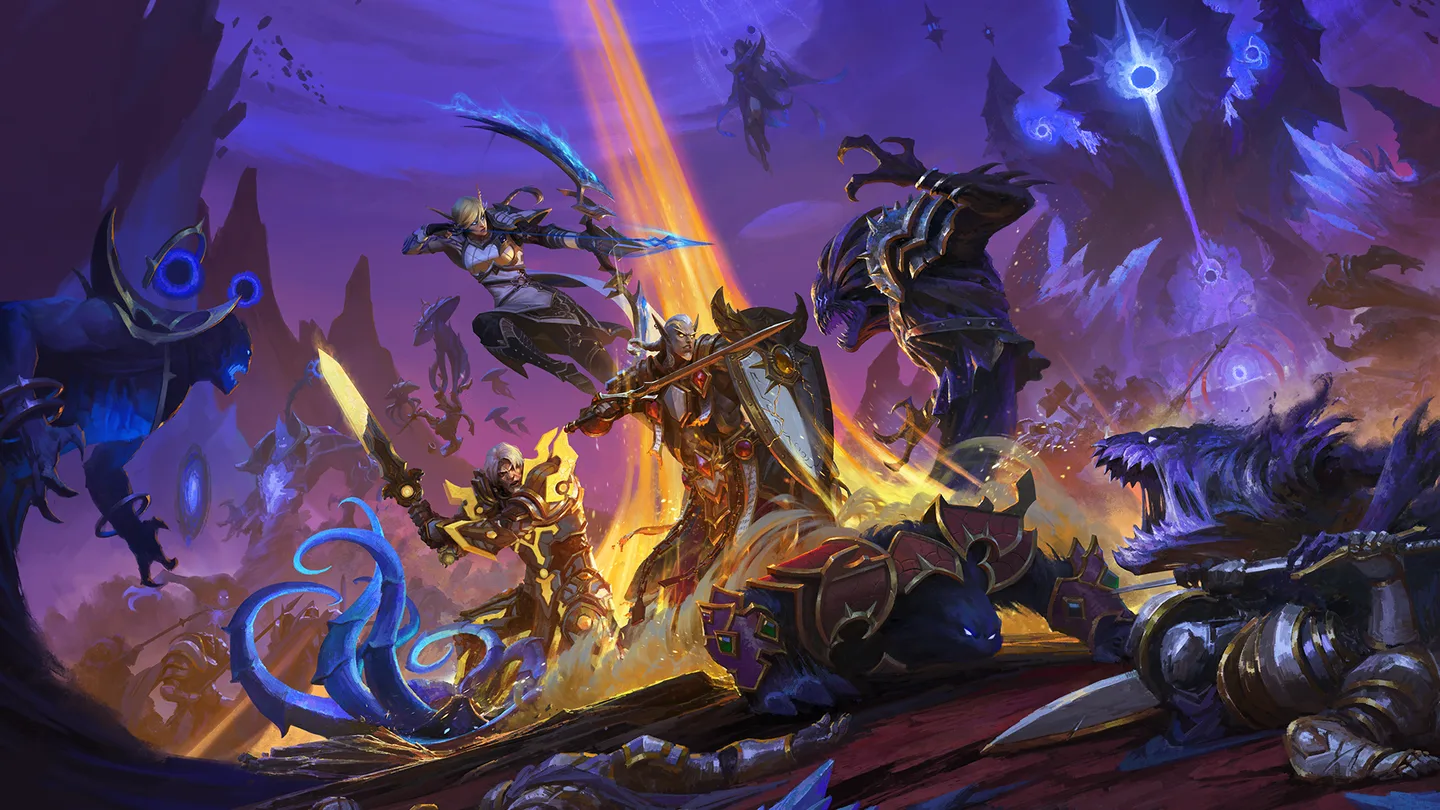 Art: Blizzard Entertainment
In World of Warcraft Retail, use the transmog interface to put appearances into an outfit slot, then save and apply that outfit. The Midnight system uses the saved outfit for your look as you replace equipment. If you want the outfit to appear in a particular situation, configure that condition after you've confirmed the basic outfit works.
Save the outfit and check the preview
- Open the transmog interface at a transmogrifier. Select an outfit slot or open the available option to create an outfit.
- Choose appearances for the slots you want to style. Inspect the preview from several angles, especially if a cloak, shoulder, or weapon is part of the look.
- Check the price shown for saving or changing the outfit. Confirm the save when the preview and cost match what you want.
- Apply the saved outfit and close the interface. Check your character in normal play to verify the result.
Choose the correct slot before making changes. If you want to keep an existing look, use another available slot for experiments. A spare slot lets you compare appearances without overwriting the design you already use. If you are testing a look, preview it first and wait to save until you've decided which changes are worth the displayed cost.
A transmog outfit controls your appearance. An Equipment Manager set controls the gear you actually wear. Use the equipment set for stats, weapons, and trinkets. Use the outfit for the look you want those items to display where their appearances are compatible.
Configure when an outfit should apply
Midnight's outfit settings can let you use situations to switch appearances. Start with one situation you can reproduce easily. Open the saved outfit's situation controls, choose the condition the client offers for your goal, and save the setup. Then enter and leave that situation to verify what happens.
For example, if you want a different look for a particular kind of activity, assign the supported activity condition and test it with that outfit. Keep your ordinary look available for the rest of your play. If the switch happens at the wrong time, review whether another condition is also active.
Add conditions one at a time. A single test tells you whether the basic switch works. Several overlapping conditions can make it hard to see which one selected the outfit. Use clear outfit names so you can tell whether the client applied the intended design or another one with similar pieces.
Keep the look through equipment changes
After saving and applying an outfit, try an ordinary gear change in a safe setting. Check which parts of the look remain. Since the outfit handles appearances, a replacement item doesn't generally require rebuilding the whole outfit. Some appearances still depend on item and character compatibility, so inspect the changed slot if it looks different.
If a replacement weapon changes the appearance you see, compare the equipment type with what the saved outfit uses. Open the outfit preview and look for a compatible option. Check the specific slot before paying to edit several parts of the outfit. A single incompatible appearance doesn't mean the whole outfit needs to be remade.
For a character you play in several roles, verify the outfit after a specialization or equipment swap. That gives you a chance to see whether a saved situation caused the change or whether the new equipment itself affected the available appearance.
Fix a look that didn't save or apply
If the preview looked right but your character didn't change, check that you confirmed the save and applied the intended slot. If the look changes after you leave the interface, inspect any automatic situation you assigned. Test with a simpler setup until you can see which condition is choosing the outfit.
If a specific appearance is missing, check that you've collected it and that the character can use it in the intended slot. Verify the correct slot and weapon or armor type before replacing the outfit. If the cost looks different from what you expected, use the price displayed in your current client before confirming.
Keep one outfit you can apply manually while testing automatic changes. Once the manual look and one situation both work, you can add more outfits as you need them.
More World of Warcraft guides
-
Pet BattlesArt: Blizzard Entertainment
How to Start Pet Battles in WoW Retail11 Nov
-
Chromie TimeArt: Blizzard Entertainment
How to Use Chromie Time in WoW Retail11 Nov
-
Delve JourneyArt: Blizzard Entertainment
How to Use the Delve Journey in WoW Retail11 Nov
-
SkyridingArt: Blizzard Entertainment
How to Use Skyriding in WoW Retail11 Nov
Sources
This article was written by AI (Claude) and checked against the sources above. Games are updated regularly, so details may change.